XeL LR4 Comptible

We don’t need no stinking Photoshop – Retouching 101

retouching_101_540x195

I’m constantly on the search for the smoothest and quickest way to process images.

That’s it, nothing fancy about it.

I like speed, accuracy, and quality. Can they all be wrapped into one workflow that can take care of the majority of my shoots? – I certainly think so!

This little gem of a workflow has been in my bag ‘o tricks for quite some time. It’s quick, easy, and works in both color and/or black and white modes.

I’m exposing this particular workflow because I think there are numerous ways to attack portraiture work, and I’d like to know more about how those of you out there are leveraging any particular techniques I might consider or that you’d like to share with our community.

We’re 100% open source here at X=, this is our workflow, no surprises or hidden agendas – this is how we do it.

Chime off in the comments below!

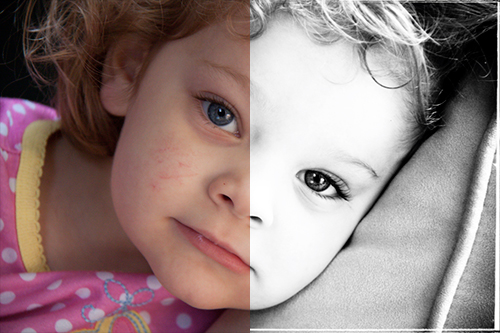
As always, let’s start with a quick before and after:
retouch1

You’ll notice some edge effects on the final image. These were done using Parker J for Photographers Edge Actions. I LOVE them – and I’m not on their payroll either, I just dig their product! I’ll discuss in detail how I am using these actions in the later portion of this post.

Now let’s look at the original image:

retouch2

Since I’ll be converting this to black and white, I’m happy with the color of this shot pre-conversion. If you’re a stickler for color, I STRONGLY suggest you create a camera profile for your lighting conditions as a way to save you time and effort in your future workflows. Mike Gray has taken color profile creation to the next level.

A few issues I want to fix in this image:

  • clean up blemishes on the cheeks and nose
  • overall – smooth out the skin
  • increase exposure
  • increase the blacks

First I’ll send this shot into the dreamy black and white universe I like to call X=SUPER+PUNCH:

retouch3

Through this conversion process, the blemishes have been somewhat resolved. This is partly because the X=SUPER+PUNCH preset does bump the exposure and black up a bit through this process. But let’s say you don’t use the preset. Where would you attack these issues?

I’m a firm believer that in these instances the Exposure slider is your friend. If you are hesitant to tweak your exposure across the entire image, Lightroom allows you to work in what is called ‘target adjustment mode’ (or what I often refer to as ‘direct edit’). This will allow you to select just those areas where you want to increase exposure (such as the skin tones), while leaving the rest of the image unchanged. I discussed the use of this tool here.

Here’s our image after some more (positive +) adjustments to the exposure:

retouch4

Exposure and/or targeted adjustments will only get us so far in our example. Now it’s time to attack those blemishes with the Spot Removal tool. By using keyboard shortcut N while in the Develop Module, we can make the bulk of our remaining blemishes disappear:

retouch5

Now we’re looking REAL good:

retouch6

Now, before we call it a day and pat ourselves on the back, I want to take a moment to introduce a technique for smoothing skin that is by far the easiest way to get your feet wet with this type of retouching.

The truth is, even in the most complex of jobs this technique pretty much does it all for me!

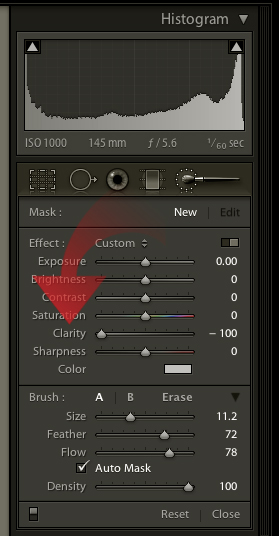
Te begin, head over the the Develop Module (shortcut key D), and select your Adjustment Brush (shortcut key K):
no_ps1

I set the brush up with the following settings:

  • Clarity: -100 (this softens the brush perfectly)
  • Size: 11.2 (set this based on your needs)
  • Feather: 72 (this determines the fade on the brush from the brush edge outward to your image)
  • Flow: 78 (this determines how much of the effect is applied as you repeatedly brush over the image)
  • Auto Mask: (confies brush strokes to areas of similar color)
  • Density: 100 (controls the transparency of your brush strokes)

With this minimal set of settings you have an extremely powerful retouching tool. Now it’s time to rock!

I normally to run the Adjustment Brush over-and-over the image in particular areas to ‘build up’ the effect, which is why I think the Feather , Flow, and Auto Mask settings are important to get dialed in properly for your image and the effect you are trying to achieve. For even more control over the ‘build’ adjust the Density slider as needed.

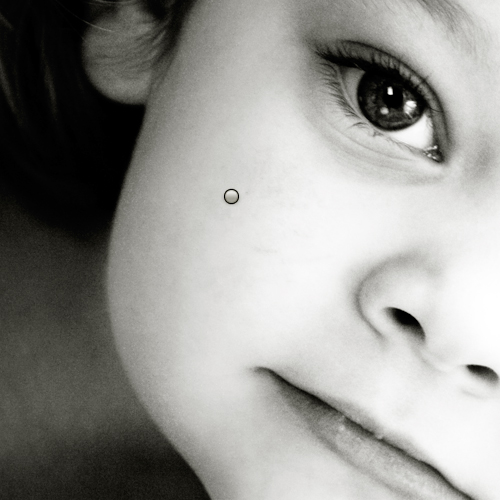
With my settings in place, I start on a medium gray portion of my image:
no_ps3

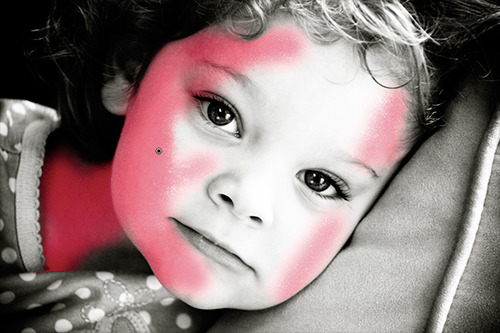
… and work my way to the light and dark portions of the skin:
no_ps4

You’ll notice the areas more saturated in red define where multiple brush strokes have been used to soften the skin. If you use a Wacom Tablet or something similar you’ll especially love how free-from you can be with this tool.

You can preview your work by turning the red overlay on or off by pressing shortcut key O.

And with that we have our final image:

no_ps5

So we really DON’T need no stinking Photoshop to do some highly targeted retouching on any image – and in a non-destructive manner!

BUT – to do border effects and the like, you have to head on over to Photoshop. We’re going to leverage Parker J’s for Photographers Edge Actions in this workflow but you could substitute any action fo that matter.

Allow me to explain how I go about adding that special flavor.

First off, kick your image over to Photoshop using Cmd+E (Mac) or Ctrl+E (PC):

no_ps6

Ahh, there we go, now let’s get down to business. Make sure you have your desired action loaded up (in this case we have Parker J’s Edge Actions):

no_ps7

I am REALLY liking the IS Sloppy Knockout action since it knocks out the edges and gives me a very dirty rough edge. I simply select the run button and the action asks me to select from a folder of prebuilt Photoshop files that include the edge textures:

no_ps8

And our good friend Parker J has a bunch of KILLER edge effects we can use:

no_ps13

… or EXTEND by creating out own Photoshop textures – simply saved out as PSD’s into any folder we choose!

In this example, I choose isko_25.psd:

no_ps9

And when I do so, the action will ask me to align the border:

no_ps10

… which I’ll do using the Free Transform Tool by hitting shortcut key Cmd+T (Mac) or Ctrl+T (PC):

no_ps11

Once I have the border scaled and rotated to my liking, one hit of the Enter key, and it’s MAGIC time!

no_ps12

And … DONE!

Workflow’s are like recipes – the key ingredients are crucial to the meal, yet the blending of those ingredients is where the unique flavors come together to make that meal special and unique to your style – which is exactly what we have explored here.

I’d like to hear more about how you leverage Lightroom for retouching, and at the same time I hope I’ve opened your eyes to some of the complimentary activities that can be leveraged between Lightroom and Photoshop without requiring much additional work to add some great final touches to your images.
Sound off in the comments below, and please share your work on our Flickr Group!

|Brandon Oelling
x=photography+consulting – image+workflow+technology+business

, , ,

Tell your friends you love X-Equals!

You asked for it!

bigboxbanner

6 Comments For This Post

  1. Sean from Lightroom Blog Says:

    Most of the retouching I do in Lightroom involves spotting, light negative clarity (I find it looks terrible with colour shots at 100), along with dodging and burning to create shape, and to correct for differences in skin tone. It’s not perfected yet, but it’ s still more than usable. If the edge detection was slightly better, it would help when painting across face edges when using negative clarity. Currently it blurs then skin beyond the edge of the face, which is my main beef when painting it in.

    I peeked at Parker J’s site. I have a huge set of presets that I’ve created. Seeing someone selling their set for $249 makes me go WTF? $30 sure, or even $50. But how can someone value presets at almost the price of the program they run in?

    Anyone want to offer me $249 for large collection of presets? Nope..

  2. Michael W. Gray Says:

    Brandon, I have to say sometimes you scare me. This is how I handle 90% of my wedding work, using PS only for the heavy lifting (such as removing 20 years of life off people).

  3. Stefan Tell Says:

    I agree with you that you can use Lightroom for a lot that required a long trip to Photoshop before, but as soon as I have a portrait or something else that needs a little more postprocessing I still go to PS (as Michael said).

    What holds me back from using LR more when it comes to more detailed work is the lack of overview over my adjustments (small grey dots here and there compared to a good layer panel). But LR is LR and it should maybe not try to imitate PS too much.

  4. Zach Petschek Says:

    Lightroom is great for retouching. Most photos do not need photoshop to be retouched and every single move you make does not damage the final image and can be undone at anytime. However I gotta say you blew out the skin tones so much it scares me. This image would have looked a lot better if you still held some detail in her skin instead of going all Hiroshima on her. But each unto his own right?

  5. Brandon Oelling Says:

    All I can say is “some people like Chocolate, some people like Vanilla”.

    I DO, although, like the Hiroshima comment … LOL!

  6. Jana Says:

    What a great post! For someone like me working on the transition from ACR to Lightroom, these kind of tips are so valuable!

3 Trackbacks For This Post

  1. Tutorial/Tips/Photographers Watch (June 19, 2009) - Big Edition at Imaging Insider Says:

    [...] We Don’t Need No Stinking Photoshop – Retouching 101 (x=blog+stay+informed) [...]

  2. Top 10 Lightroom Tweets of the Week Says:

    [...] @xequals Are you retouching in Photoshop exclusively? That’s soooo 2008! Time to consider Lightroom – http://x-equals.com/blog/?p. [...]

  3. Weekend Perusing: Fire and Ice | Your Photo Tips Says:

    [...] takes you through a step by step BW plus special effects conversion in [...]

Leave a Reply

Your favorite films brought to life!

CS2 Banner